TV Cast: Chromecast Smart View
- 4.4
- Rating
- 10.00M
- Installs
- Free
- Price
 Analysis by App-foxy
I found TV Cast: Chromecast Smart View most useful when I treated it as a flexible bridge between my phone and the television, not as a complete replacement for every manufacturer’s remote or casting system. It brings several familiar ideas into one House & Home app: casting, Chromecast support, Smart View, Miracast, and screen mirroring. That range is its main appeal, but it also explains why the experience can feel less predictable than using the TV maker’s own application.
My overall view is positive, with an important condition: your television and phone need to cooperate with the connection method you choose. When they do, the app can make sharing a photo, video, presentation, or phone screen much more convenient. When they do not, no attractive interface can solve the underlying compatibility problem. I would recommend it to people who want one practical casting tool, while I would steer users with a single-brand setup toward the official solution if their priority is maximum reliability.
What the app actually brings together
TV Cast: Chromecast Smart View is a free app from TV Master - Smart TV Remote Control. Its store summary points to Google Cast, Chromecast, Smart View, Miracast, and screen mirroring, so the product is best understood as a collection of ways to move content from a mobile device to a compatible television or display. It is not limited to one narrow casting route, which makes it more interesting than an app built around a single receiver standard.
You May Also Like

 Pandora - Music & Podcasts
Pandora’s Music Is Easy to Start, but Harder to Recover
Pandora’s strength is its low-effort path from a seed to a station. Its weak spot is how much confidence it asks you to place in connection, setup, and quiet recovery.

 8 Ball Pool
 Is Built on Rivalries, Rematches, and Routine
A close look at the rivalries, rematches, shared routines, and unanswered safety questions that turn a quick pool match into a persistent mobile community.

 Samsung Music
’s Quiet Strength Is Playing What You Already Own
Its reach comes less from spectacle than from dependable access to a personal library. That simplicity is both the app’s strongest retention engine and its ceiling.

 AccuWeather: Weather Radar
AccuWeather Review: A Quick, Clear Forecast for Everyday Decisions
For everyday plans, the best forecast is the one you can understand quickly. AccuWeather makes rain timing, radar, and local conditions easy to act on, with a few trade-offs.

 Hill Climb Racing
Why Hill Climb Racing Still Turns Crashes Into One More Run
A tiny car, a bumpy hill and one more upgrade: Hill Climb Racing keeps resurfacing because its simple chaos makes every near-miss feel personal.

 AliExpress - Shopping App
AliExpress Makes Global Shopping Feel Personal, but Shoppers Bear the Risk
AliExpress turns a global marketplace into a pocket-sized discovery engine. Its reach is useful, its shopping loop compelling, and its trade-offs easy to miss.
More From Our News Desk
View All News


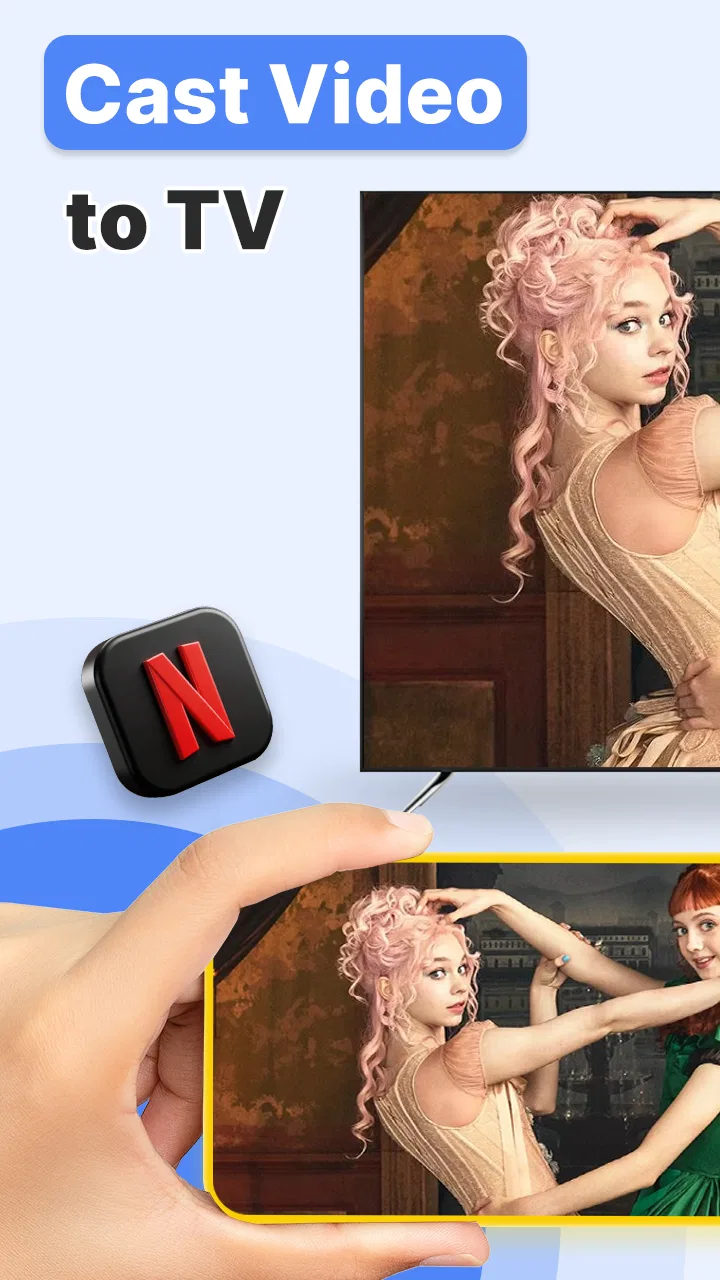
That broad approach matters in a shared home. One television may work most naturally with Chromecast, another may expose a Miracast option, and a family member may simply want to mirror the entire phone screen. Instead of switching between several unrelated tools, I can begin with the method that matches the display in front of me. The app’s usefulness therefore depends less on a single spectacular feature and more on how well it reduces everyday switching.
The app sits in the House & Home category, carries an Everyone content rating, and supports devices running Android 6.0 or later. It was released on September 17, 2020, and the current version is 5.9.1. Those details make it approachable for a wide range of Android users, including people who are not using a recent phone. At the same time, operating-system support alone does not guarantee that an older handset, router, or television will provide a smooth casting session.
Its popularity gives the app a certain practical credibility: it has passed ten million installs and holds a 4.4 average from roughly one hundred fifty-three thousand ratings, with about two thousand written reviews. I do not take those figures as a promise that every television will connect instantly, but they suggest that the basic idea is useful to a substantial audience rather than being a niche experiment.
The strongest part is having several routes available
The most convincing reason to try this app is the choice of connection styles. A dedicated Chromecast tool can be excellent when every screen in the home uses that ecosystem, but it becomes less helpful when a second television uses a different wireless display method. Here, I can approach the problem from the display’s capabilities instead of assuming that one protocol fits everything.
That flexibility is especially handy when visiting someone else’s home. I may know that the television is “smart,” but not know which brand or casting feature it exposes. A multi-method app gives me more options before I have to search for another tool. It does not remove the need to check compatibility, but it makes the first attempt less restrictive.
Screen mirroring is also useful for content that does not offer a cast button. If I want to show a phone setting, a web page, a digital ticket, a map, or a photo album, mirroring can be more direct than looking for a dedicated receiver inside each app. That is a different job from sending a supported video to a television, and confusing the two can lead to disappointment. Casting usually feels cleaner for supported media; mirroring is more universal in concept but exposes everything happening on the phone.
I would use the two modes differently. For a short demonstration or a group of photos, mirroring is convenient because everyone sees the same phone screen. For longer viewing, I prefer a casting route when the content and television support it, since I am not forced to keep the phone’s entire display active as the thing being watched. This distinction is one of the most useful habits to establish before blaming the app for a poor session.
A realistic evening use case
Imagine returning from a family day out with photos on one phone and a television in the living room. The quickest route may be to open the app, identify the available display, and use screen mirroring while moving through the album. There is no need to pass the phone around, and the television becomes a shared surface for the conversation. If the display instead responds better to a Google Cast or Chromecast route, I can switch approaches rather than abandoning the idea.
The same workflow can help with a presentation or a repair guide. I can put the instructions on the larger screen while keeping the phone nearby for navigation. For a small group, that is more comfortable than making everyone lean over a handset. The app is at its best in these short, purposeful moments where convenience matters more than advanced controls.
There is a less obvious trade-off here. Mirroring shows notifications, navigation changes, and anything else that appears on the phone. Before sharing a screen in front of other people, I would enable a quiet mode or close private apps. This is not a glamorous feature, but it is an important practical step. A casting app can make private phone activity visible surprisingly quickly when the user forgets which mode is active.
Connection preparation makes more difference than most people expect
My first recommendation is to prepare the network before testing the app. The phone and television or receiver generally need to be reachable through the same home network for local discovery and communication to work properly. If the television does not appear, I would check the network names on both devices, wake the display fully, and confirm that the television is not sitting in a separate guest or isolated network.
I would also begin with the simplest possible test: a photo or a basic screen view. That separates a connection problem from a problem caused by a particular video service or file. Once the display responds, I would move to the actual content I want to share. This two-step approach saves time because it prevents me from troubleshooting the entire system at once.
Another useful habit is to choose the mode before starting a long session. If my goal is to show a phone interface, I select mirroring. If the content offers a compatible cast path, I use that instead. Starting with the wrong method can create unnecessary confusion, especially when the television appears connected but the expected content does not behave as planned.
Where the experience becomes less dependable
The app’s biggest weakness is not a single missing button; it is the uncertainty created by supporting several technologies with different requirements. “Smart TV” is not one universal standard. Two televisions can both advertise wireless features while behaving very differently during discovery, pairing, or playback. A multi-purpose app can offer the right category of tool without guaranteeing that every combination of phone, router, receiver, and television will work equally well.
That means I would not install it expecting a universal remote that automatically controls every television function. The product’s stated focus is casting and viewing methods, so users looking for dependable volume, input, channel, or power controls may be happier with the television manufacturer’s remote app or a physical remote. Those official tools are usually designed around one model family, whereas this app is trying to serve a wider range of setups.
Mirroring itself has natural limitations. It copies the phone’s display, so the phone remains part of the viewing chain. Rotating the handset, opening another app, receiving a visible notification, or letting the screen lock can affect what appears on the television. It is excellent for showing something that lives on the phone, but it is not always the most comfortable way to watch extended content.
There can also be a small but meaningful delay between an action on the phone and the image on the television. That may not matter while browsing photos, but it matters more for fast interaction, games, or anything requiring precise timing. I would use the app for demonstration and sharing rather than assuming it can turn a phone into a responsive large-screen gaming controller.
The free price makes trying it easy, but the app includes in-app purchases ranging from $3.99 to $29.99 per item. I would pay attention to the purchase screen and decide whether the free experience already covers my occasional needs. For someone who casts only once in a while, paying for extra convenience may not be worthwhile. A frequent user who values having one app ready for several displays may see more value, but that decision depends on how often the app solves a real problem at home.
How it compares with the usual alternatives
The clearest comparison is with an official television app. If I own one compatible television and mainly want a remote, the official application is the more focused choice. It is usually better aligned with that manufacturer’s menus and controls. TV Cast: Chromecast Smart View becomes more attractive when I work with different display types or want casting and mirroring options in one place rather than a brand-specific control panel.
Compared with using the cast button built into an individual media app, this tool offers a broader starting point. The built-in option is often the cleaner route when it is available and working: it is tied directly to the content and does not require mirroring the whole phone. The reviewed app earns its place when I need to show content that lacks a convenient cast button, or when I want to try another supported method for a different display.
It also differs from a dedicated Chromecast-only application. A single-ecosystem tool may feel simpler because it has fewer choices and a narrower purpose. This app’s advantage is adaptability, while its cost is that I have to understand which method suits my television. I would choose the dedicated alternative for a home built entirely around one casting standard and choose this app for a mixed-device household.
Who should use it, and who should skip it
I think it is a good fit for Android users who regularly share photos, documents, web pages, or phone screens on televisions and do not want to maintain a separate casting tool for every display. It is also appealing for households where guests bring different phones or where the living room and bedroom screens do not use exactly the same connection approach.
It is less suitable for someone who expects a one-tap guarantee, needs professional presentation stability, or wants a full replacement for a television remote. For those users, a direct cable, a manufacturer’s application, or the receiver’s official software may be a better choice. I would also skip it if my only goal were playing content from an app that already casts reliably through its own built-in control.
Before committing to a purchase, I would test the displays I actually use, not just one television in ideal conditions. I would confirm that the phone and display can see each other, try a simple photo, then test the specific content I care about. That small checklist is more valuable than assuming the app’s broad compatibility wording means every feature will work on every screen.
My final recommendation
TV Cast: Chromecast Smart View is a useful general-purpose casting companion with a clear strength: it gives me multiple ways to connect a phone to a television instead of forcing every home into one ecosystem. Its best moments are practical ones—sharing a photo album, showing a page to a group, or mirroring a phone when a dedicated cast button is unavailable.
I would keep my expectations realistic. Compatibility, network setup, and the difference between casting and mirroring all matter, and the app cannot make those distinctions disappear. The paid options also deserve a careful look before committing. Still, for a free House & Home app from TV Master - Smart TV Remote Control, it offers enough flexibility to be worth testing, particularly in a mixed-device household.
My recommendation is straightforward: try it if your main problem is getting different screens to share phone content, but choose an official brand-specific solution when control and consistency matter more than flexibility. That is where this app makes the most sense—and where its broad toolkit feels genuinely helpful rather than unnecessarily complicated.
FAQs for TV Cast: Chromecast Smart View
01What platforms does TV Cast: Chromecast Smart View support?
TV Cast: Chromecast Smart View is designed to work seamlessly with both Android and iOS devices. It allows users to cast videos, photos, and other media from their smartphones or tablets directly onto their Chromecast-enabled TVs. The app ensures a smooth and user-friendly experience across these platforms.
02Is TV Cast: Chromecast Smart View free to use?
While TV Cast: Chromecast Smart View offers a free version with essential features, there are in-app purchases available for users who want to unlock additional functionalities, such as removing ads or accessing premium features. This allows users to choose based on their needs and budget.
03How do I connect my device to Chromecast using TV Cast: Chromecast Smart View?
To connect your device, ensure both your smartphone or tablet and Chromecast are on the same Wi-Fi network. Open the app, and it will automatically detect available Chromecast devices. Select your Chromecast from the list, and you’re ready to start casting your media to the TV effortlessly.
04What types of media can I cast using TV Cast: Chromecast Smart View?
TV Cast: Chromecast Smart View supports a wide range of media types, including videos, photos, and music. Users can stream content from websites, personal media files, and even cloud storage. The app ensures high-quality streaming, making it versatile for various entertainment needs.
05Are there any common issues with TV Cast: Chromecast Smart View and how can they be resolved?
Common issues might include connectivity problems or lag during casting. To resolve these, ensure both the app and your device’s software are up to date. Restarting your router and verifying that your device and Chromecast are on the same network can also help improve performance and connectivity.
Pros
- Easy setup with Chromecast devices.
- Supports a wide range of video formats.
- User-friendly interface design.
- Fast streaming with low latency.
- Compatible with both Android and iOS.
Cons
- Contains in-app advertisements.
- Some features require a premium upgrade.
- Occasional connectivity issues.
- Limited subtitle support.
- Not all websites are compatible.

TV Cast: Chromecast Smart View
Gallery